Skip to Content
Igloo
  • 0
  • Sign in
  • AR CS NL EN FI FR DE HI IT PL PT ES SV UK
  • Contact Us
  • Home
  • Shop
  • Support

    For user


    Support requestCustomer surveyList of all test instructions QC procedureResults evaluation

    For Test Manufacturer


    Test adaptationStep 1 | Get your Igloo Step 2 | Test calibration Step 3 | Place barcode on cartridge

    For Pharmasist


    Add to Igloo Health Map
  • Downloads
  • Documents
  • For businesses


     For Bisnesses


    Point-of-care businesses Pharmacies Dental clinics

    Coming soon*


    Gyms and fitness centers Telemedecine Cosmetology and beauty salons Midwifery care
  • Science hub


    Biomarkers


    Ferritin Vitamin D TSH HbA1c

    Technology


    Igloo Reader Pro
  • News
  • Contact us
Igloo
  • 0
    • Home
    • Shop
    • Support
    • Downloads
    • Documents
    • For businesses
    • Science hub
    • News
    • Contact us
  • AR CS NL EN FI FR DE HI IT PL PT ES SV UK
  • Sign in
  • Contact Us


Measurement with Desktop App


1


Set Up the Desktop Environment

  • Install Dx365 Care Desktop software on a supported system (Windows/macOS) by downloading it from the official Dx365 support portal: https://www.igloo.today/downloads
  • Ensure the computer is connected to the internet for initial calibration downloads.
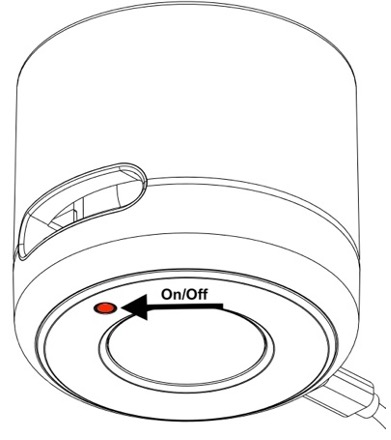
  • Power on the Igloo Reader Pro.
  • Connect the reader to your computer via USB-C cable.

2


Device preparation

  • Open Dx365 Care Desktop and wait for the Igloo Reader to be detected.
  • Switch on the device and press new measurement.
                         

  • Fill in Patient ID, age and gender.

3


Sample preparation

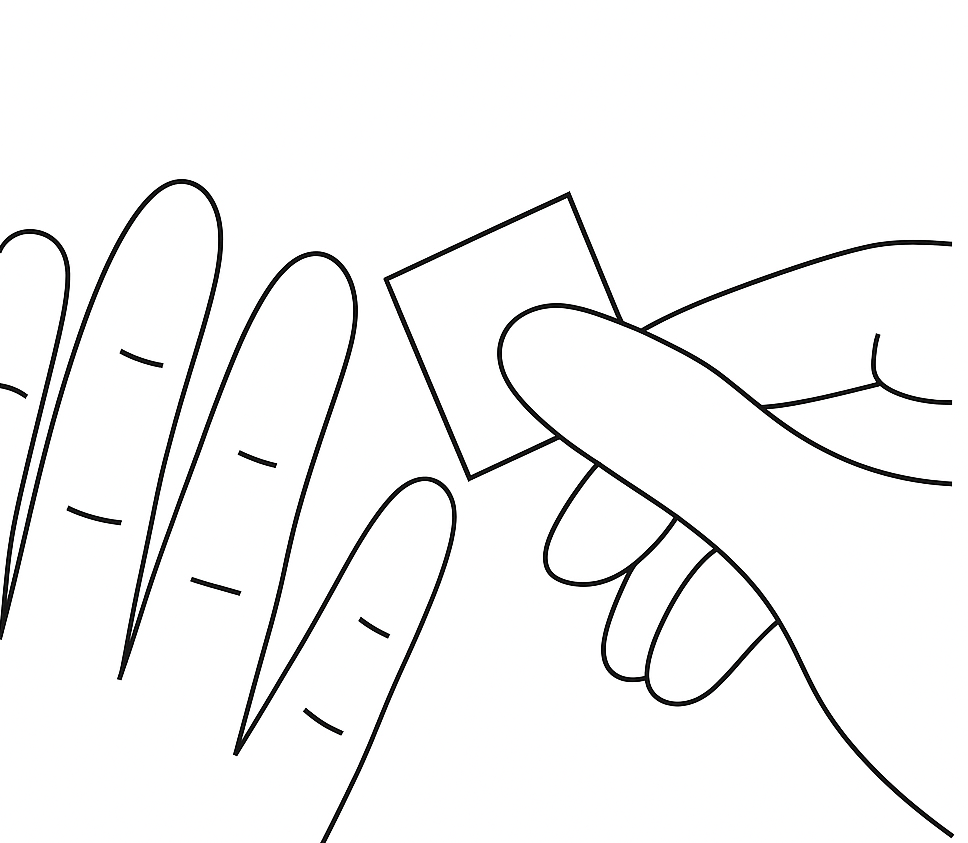
  • Disinfect finger with a tissue                      
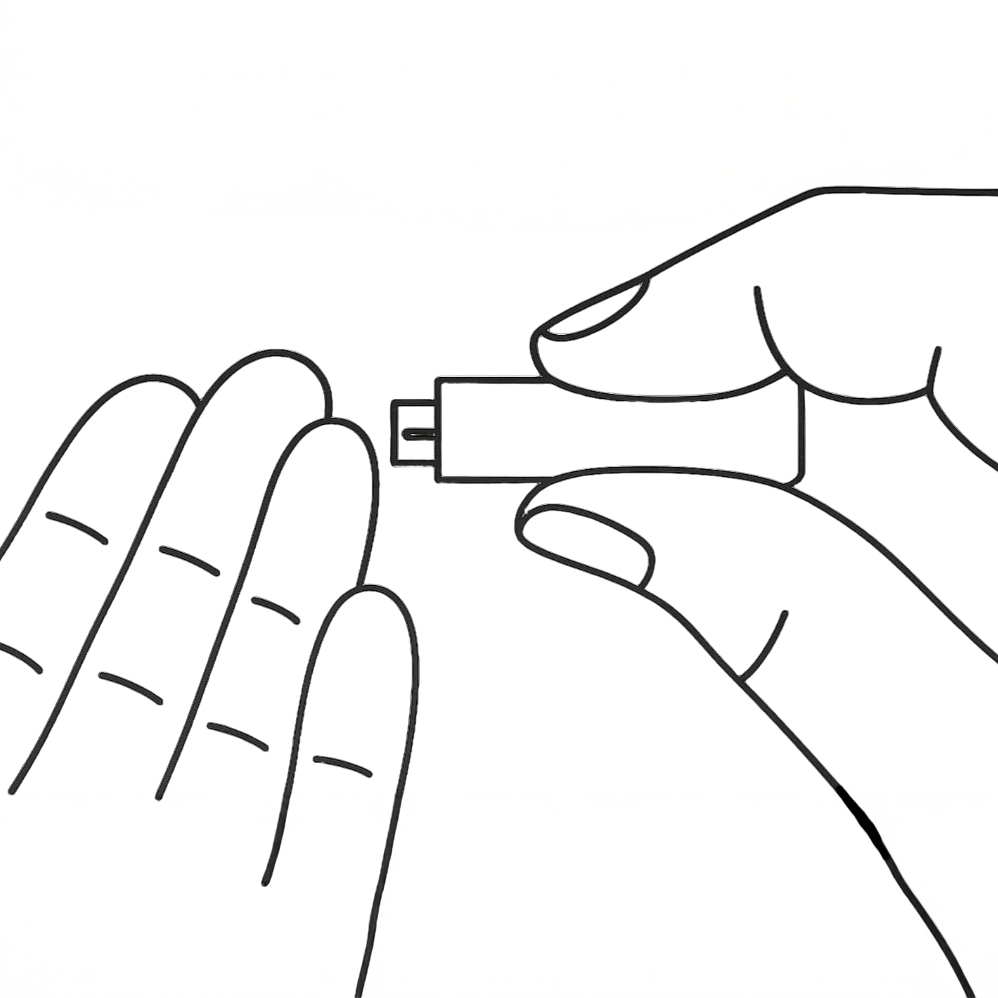
  • Puncture finger with a lancet


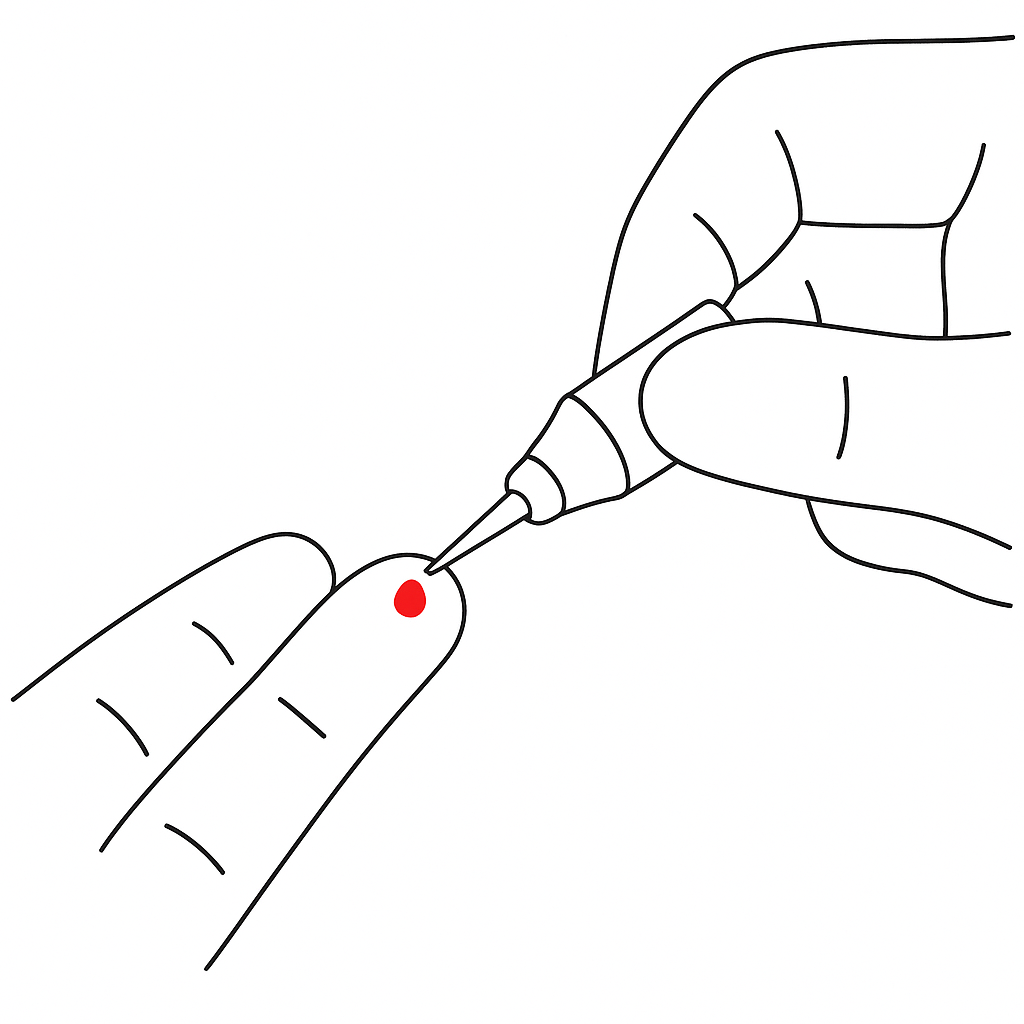
  • Draw blood with a capillary                
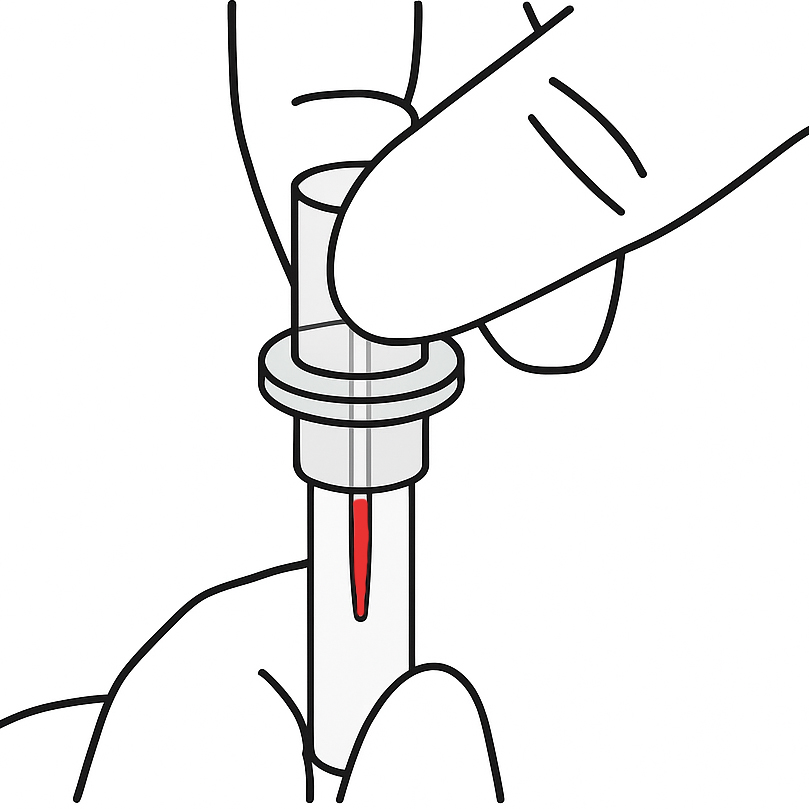
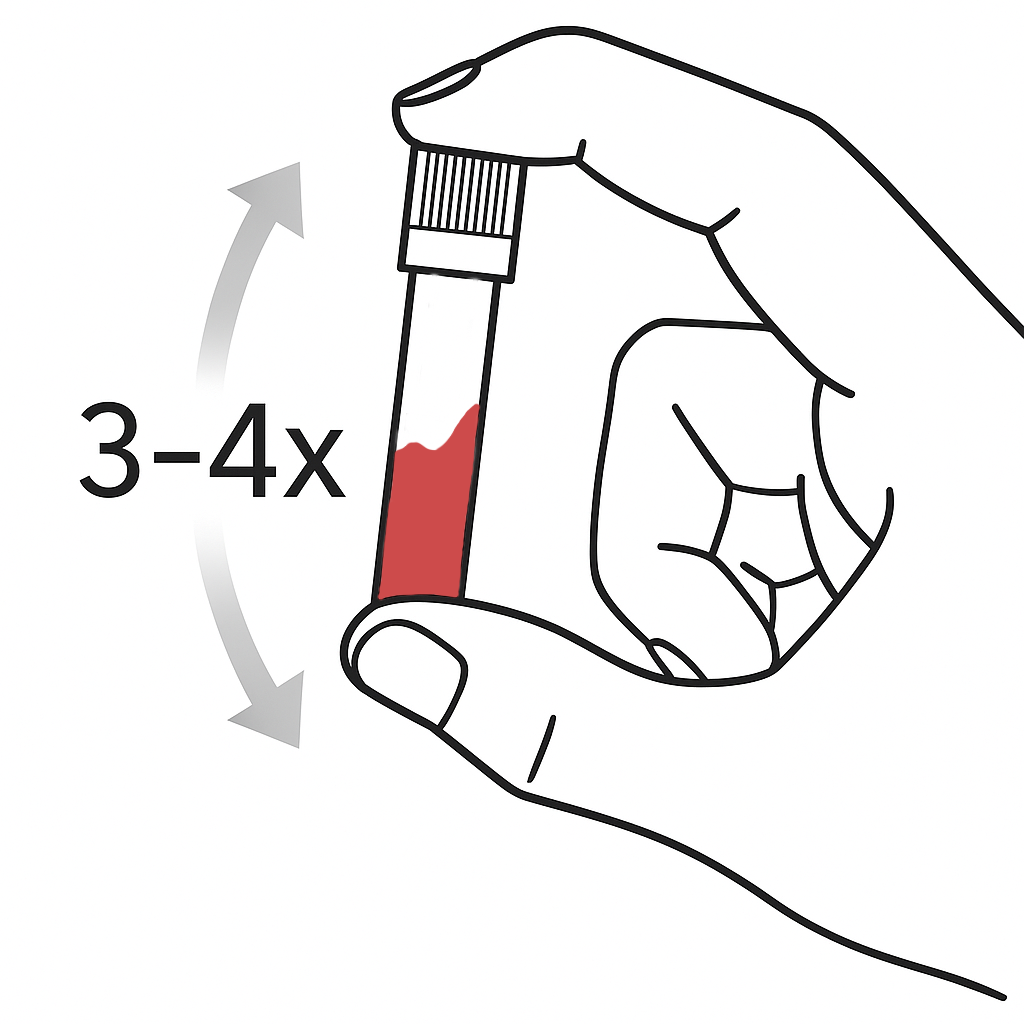
  • Mix blood with buffer


4


Start measurement 

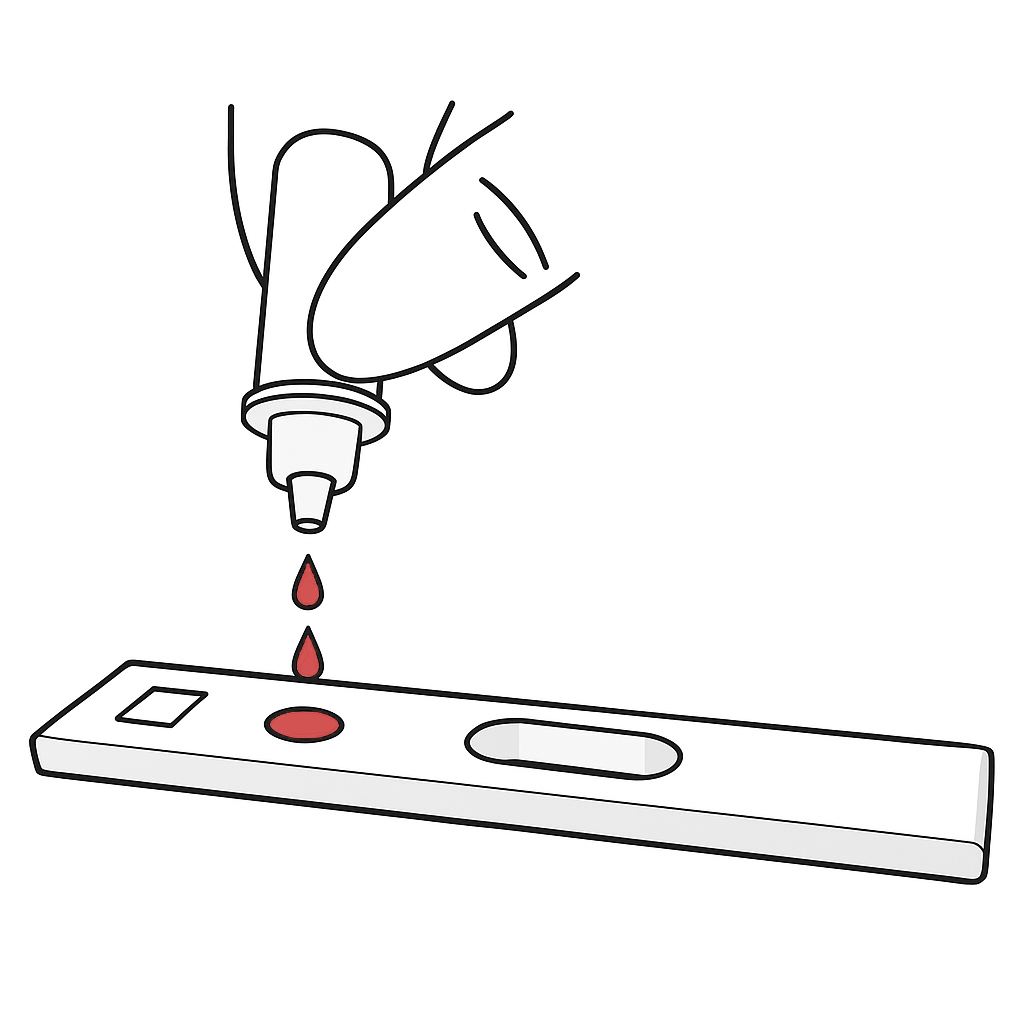
  1. Add blood with buffer to test cassette
  2. Insert the cassette with the adapter into the Igloo Reader
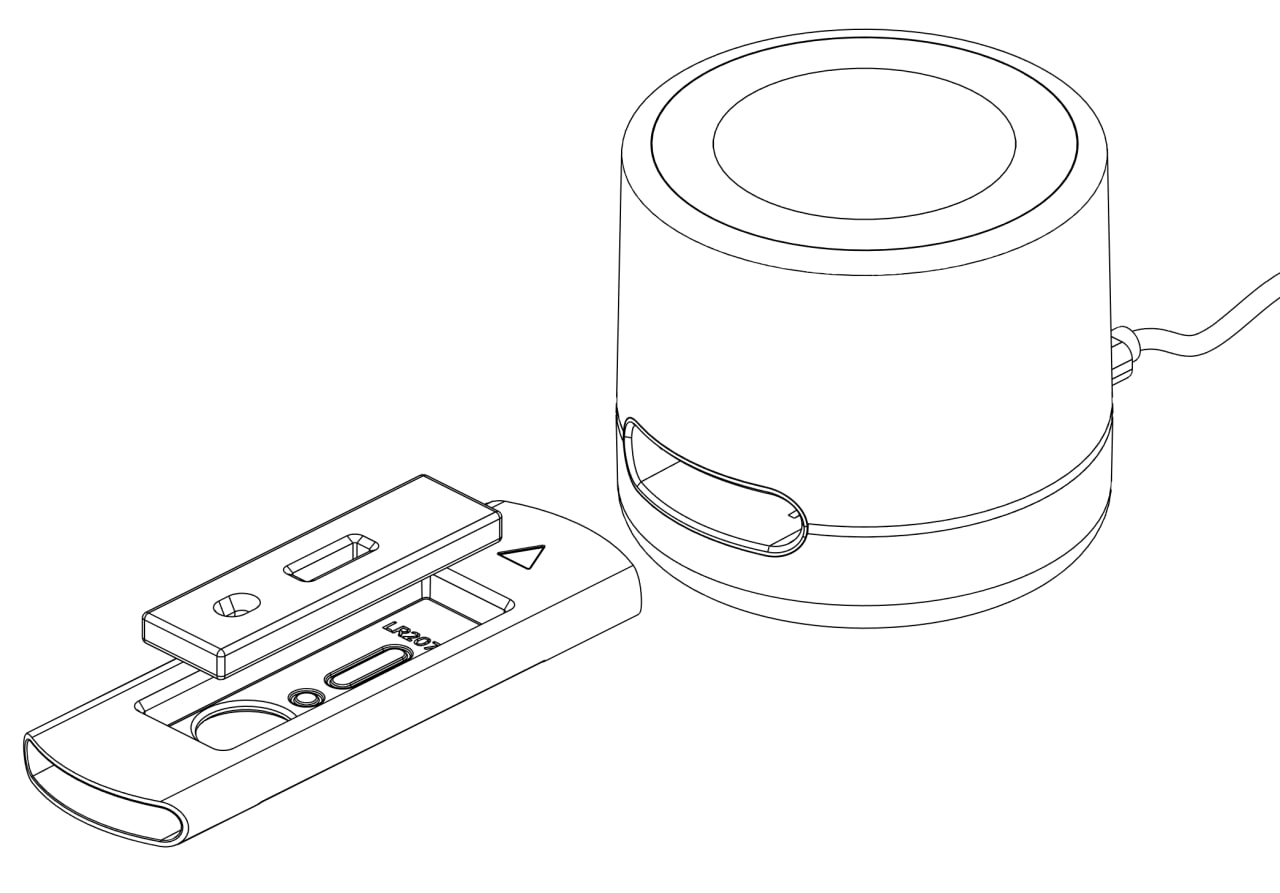
  3. The measurement will start automatically and the device will display the incubation timer on the screen. Within 3-15 minutes (depending on the type of test) you will get the result.


5


View and Export Results

  • Once the test is complete, the results will appear directly in the Dx365 Desktop interface.
  • Available actions:
    • Export results as PDF or Excel (.xls)
    • Print the report
    • Send to cloud for syncing with Dx365 Cloud
Legal

  • Imprint
  • Legal info
  • Privacy policy
  • Cookie policy
  • Sales terms and conditions


Customer Care

  • Support Request Center
  • Contact Us
  • Downloads
  • Documents
  • Test Instructions
  • Test Manufacturer Instructions


Social Networks

Social Media

© Dx365 GmbH - Terms & Conditions - Privacy Policy
الْعَرَبيّة | Čeština | Nederlands | English (US) | Suomi | Français | Deutsch | हिंदी | Italiano | Język polski | Português | Español | Svenska | українська
Powered by Odoo - The #1 Open Source eCommerce

Respecting your privacy is our priority.

Allow the use of cookies from this website on this browser?

We use cookies to provide improved experience on this website. You can learn more about our cookies and how we use them in our Cookie Policy.

Allow all cookies
Only allow essential cookies